


| Latest version | 1.4 |
|---|---|
| Minimum Core | 13 |
| Compatible Core | 14 |
| Last updated | 1 month ago |
| Created | 11 months ago |
| Authors | |
| Languages |
English German Polski |
| Systems | All systems |
| Project source | Project URL |

Journal Styler
Created in collaboration with Immersive Realms
Code: BartekB | UI and Journal Themes: DeviousHearts
Overview
The Journal Styler module allows each user to easily customize the look of Foundry VTT journals independently. Every player and GM can choose their own favorite Journal Theme for each individual journal entry in the game.
How It Works
In the journal header, you’ll find a new palette button on the right:

Clicking this button opens a theme selection dialog, where you can configure three main elements:
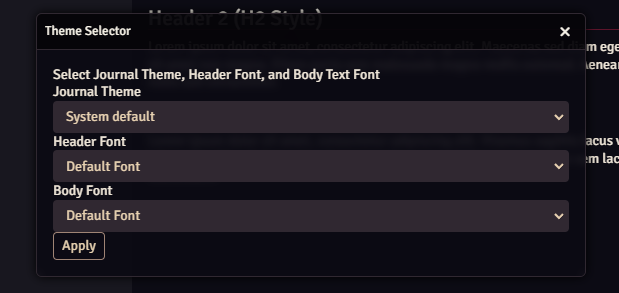
1. Theme
Themes define the background image, and default header and body fonts for the journal text.
You can choose from 10 predefined themes:
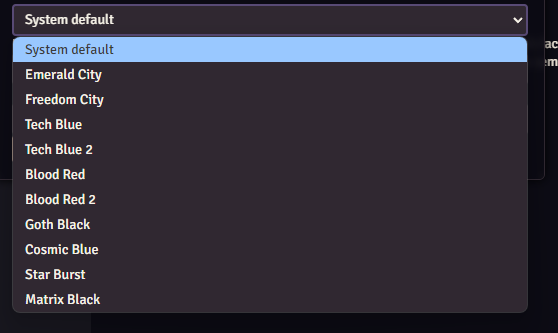
2. Header Font
Overrides the theme’s default header font for all heading elements in the journal.
3. Body Font
Changes the default font for all non-header text in the journal.
These settings do not override fonts manually applied during text editing — your inline styles remain unchanged.
GM Features
As the Game Master, you can set a default theme for all newly created journals in the module settings. The GM’s selected theme will be visible to all players until they change it for themselves.
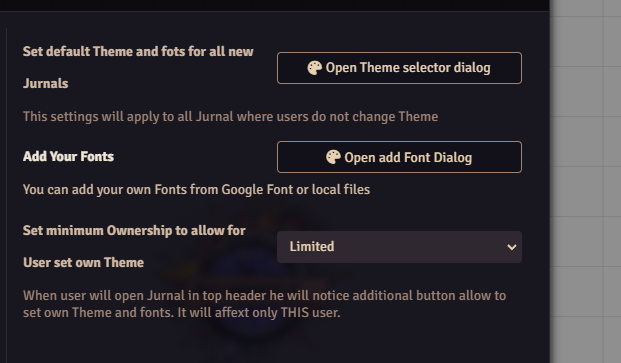
You can also restrict players from changing themes or fonts.
By default, any player who can view a journal can also change its appearance.
However, this behavior can be limited by adjusting the minimum ownership level required to make style changes.
Fonts
GMs can easily add custom fonts, either from local files or Google Fonts.
Just make sure to enter the correct font name as it appears in the font file or on Google Fonts.
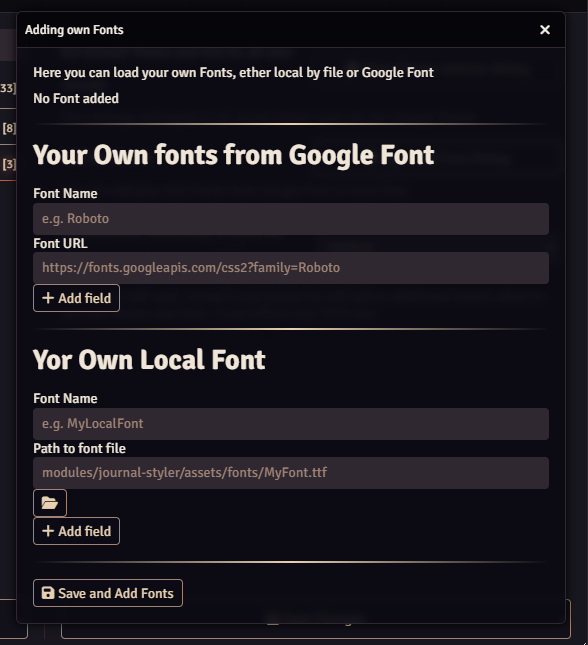
There’s no limit to how many fonts you can add.
The module also includes 120 fonts by default, all available in the Foundry Text Editor:
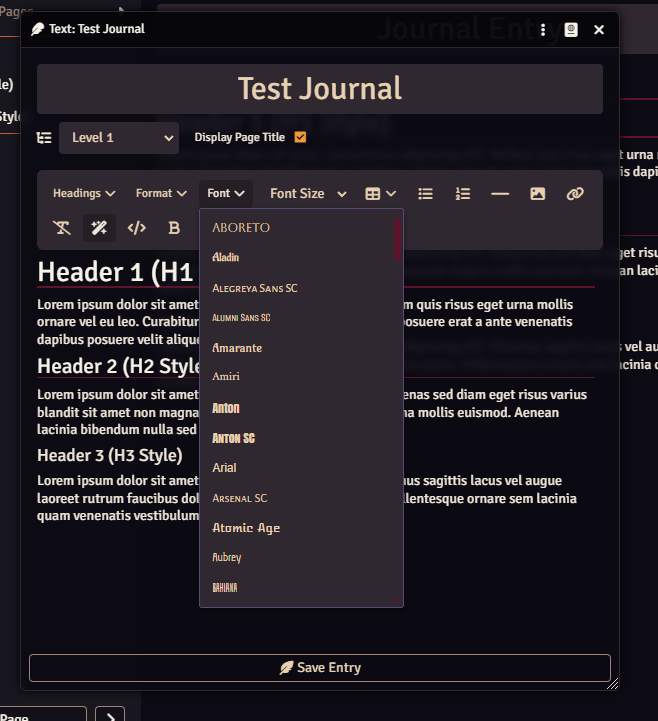
Text Editor Improvements
The module enhances the default Foundry text editor:

- The header selector is now separated into its own dropdown.
- Bold, italic, and underline buttons have been reorganized for easier access.
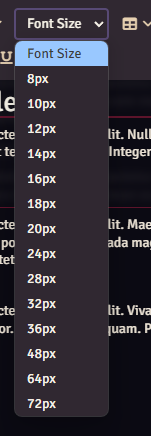
- A font size selector has been added, offering quick size adjustments:
Summary
Journal Styler makes it simple for players and GMs to personalize their Foundry journals — with themes, fonts, and improved editing tools.
Whether you’re creating a gritty noir logbook or a bright fantasy codex, you can now match your journal’s look to your story’s tone effortlessly.