

| Latest version | 14.5.1 |
|---|---|
| Minimum Core | 14 |
| Compatible Core | 14.370 |
| Last updated | 5 days ago |
| Created | 1 month ago |
| Authors | |
| Languages |
|
| Systems | All systems |
| Project source | Project URL |
| Report bugs | Bug tracker URL |
| Read-me | Readme URL |
| Changelog | Changelog URL |
| License | License URL |
Immersive Vision FX
A premium Bakshi’s Bazaar module for Foundry VTT.





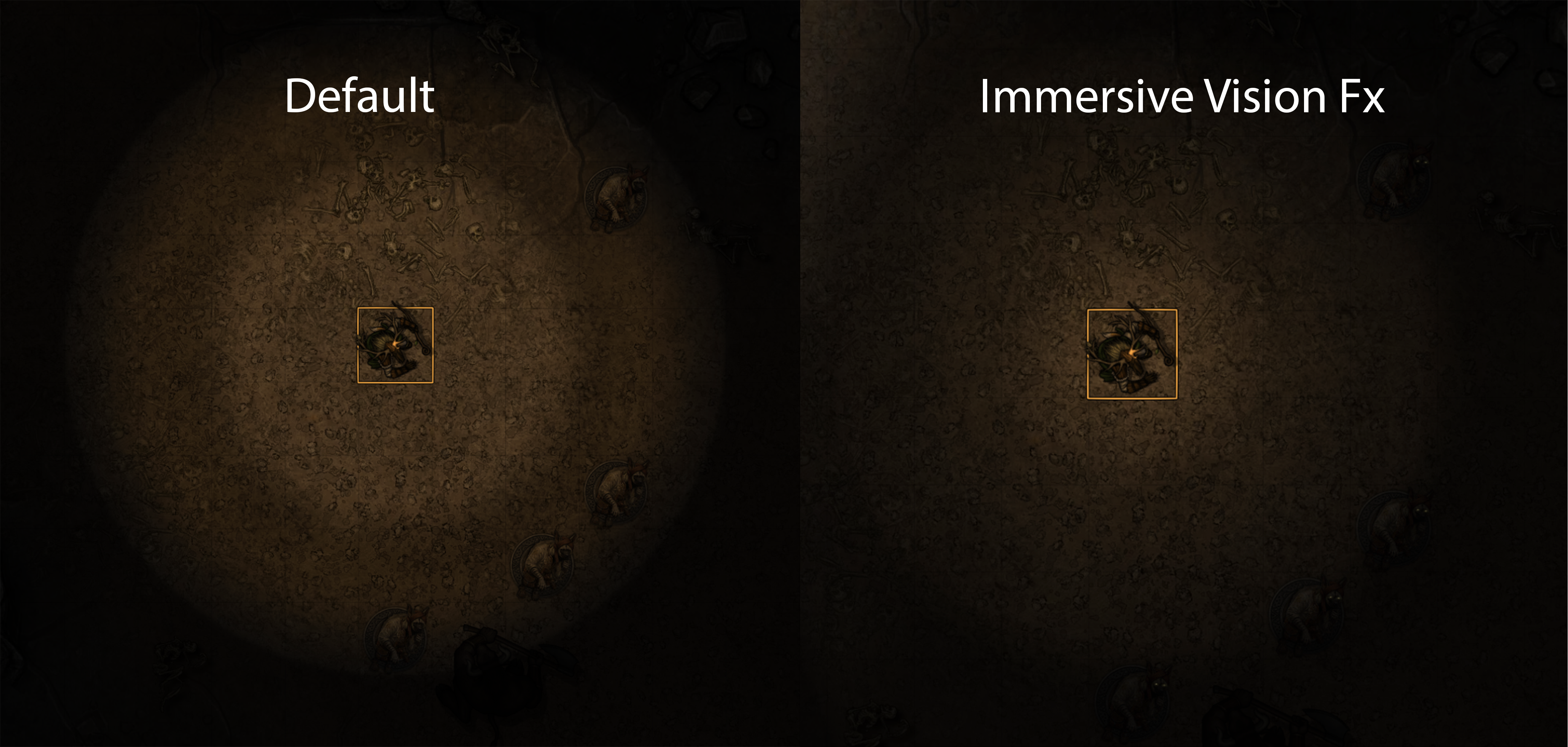
Soften vision and light edges, give creatures different ways of seeing, and preview the result through a token’s eyes.
Preview · Quick Start · Features · Installation · Changelog · Compatibility · API · Free Modules · Roadmap · Community · AI Use · License
Feature Index
| Feature | What it does |
|---|---|
| Soft Vision & Light Edges | Let sight and placed lights fade into darkness while respecting Foundry’s walls and fog. |
| Peripheral Vision | Add adjustable blur and color loss near the edge of sight. |
| Creature Vision Profiles | Give humans, elves, and animals different color, low-light, and focus settings. |
| Outdoor & Cave Light | Add moonlight, starlight, and daylight spilling through cave entrances. |
| Eyeshine | Map reflective eyes to token art and reuse the mapping wherever that art appears. |
| Vision Rules | Optionally let IVFX decide what each creature sees, with darkvision as a magical sense and faint creatures drawn faint. |
GMs create shared profiles, configure scene lighting, and map eyeshine. Players can adjust the view in their own browser or turn off the module’s effects for themselves. Profiles change how a viewer sees the scene; changing a profile won’t change a torch’s saved brightness or radius for everyone else.
Preview
Quick Start
For a first look, use a token with vision enabled in a dimly lit scene with a nearby light.
- As a GM, open Module Settings → Immersive Vision FX → Settings & Vision Profiles.
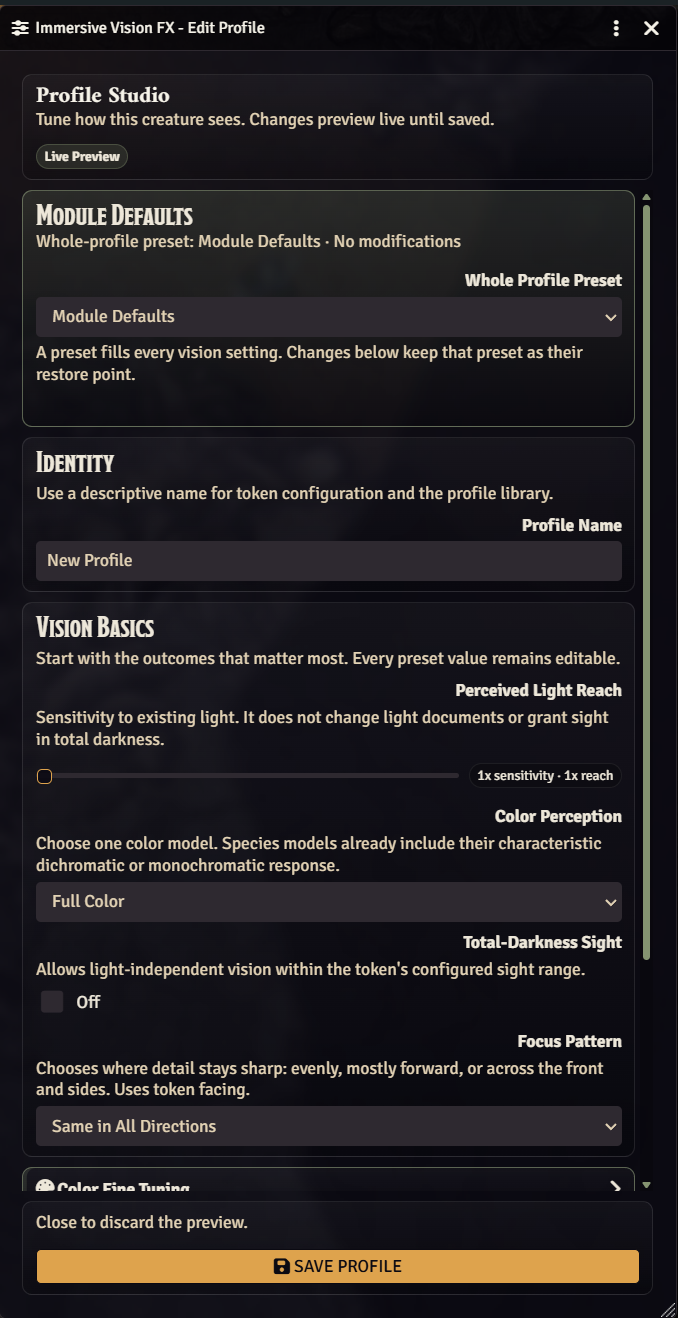
- Choose New Profile…, pick a preset such as Human or Canid, and click Open Draft.
- Give the profile a name and save it. You can adjust the details later.
- Open the placed token’s Vision tab, select your profile under Immersive Vision FX, and click Update Token.
- Select that token on the canvas to see its view. As a GM, use Selected Token under GM Vision Preview.
If the scene is fully lit by Global Illumination, the darkness effects may not appear. Try a darker scene to see the fade and compare profiles.
Features
Soft Vision & Light Edges
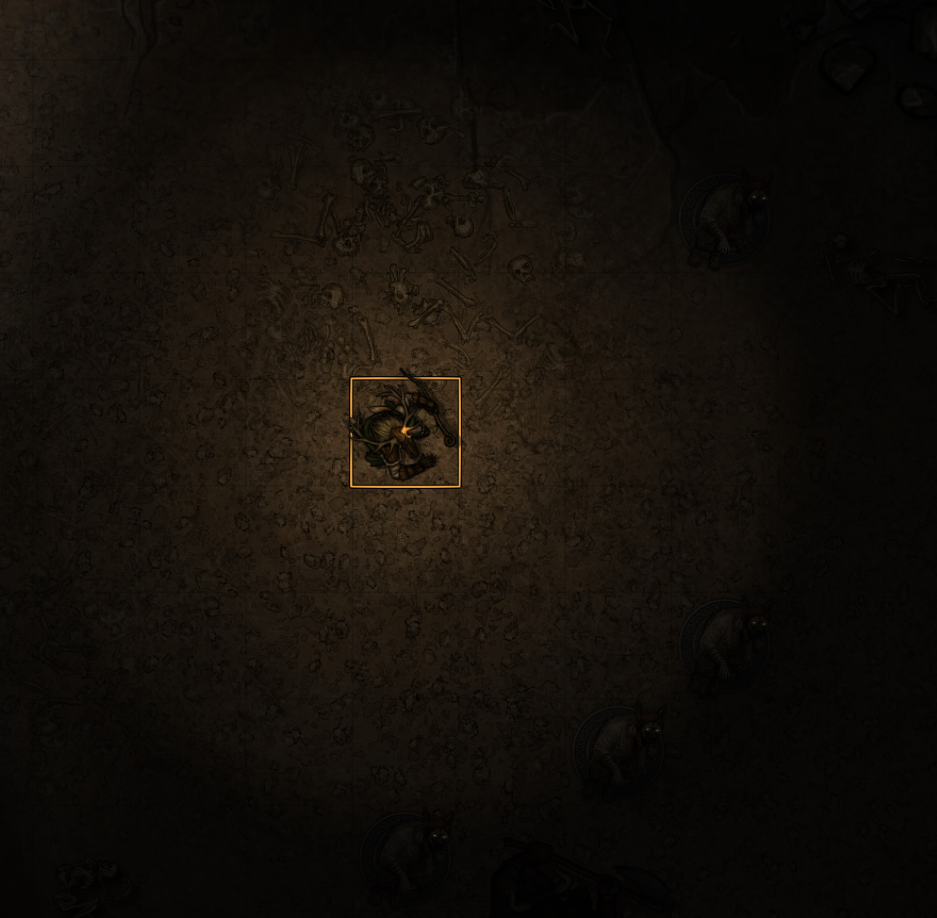
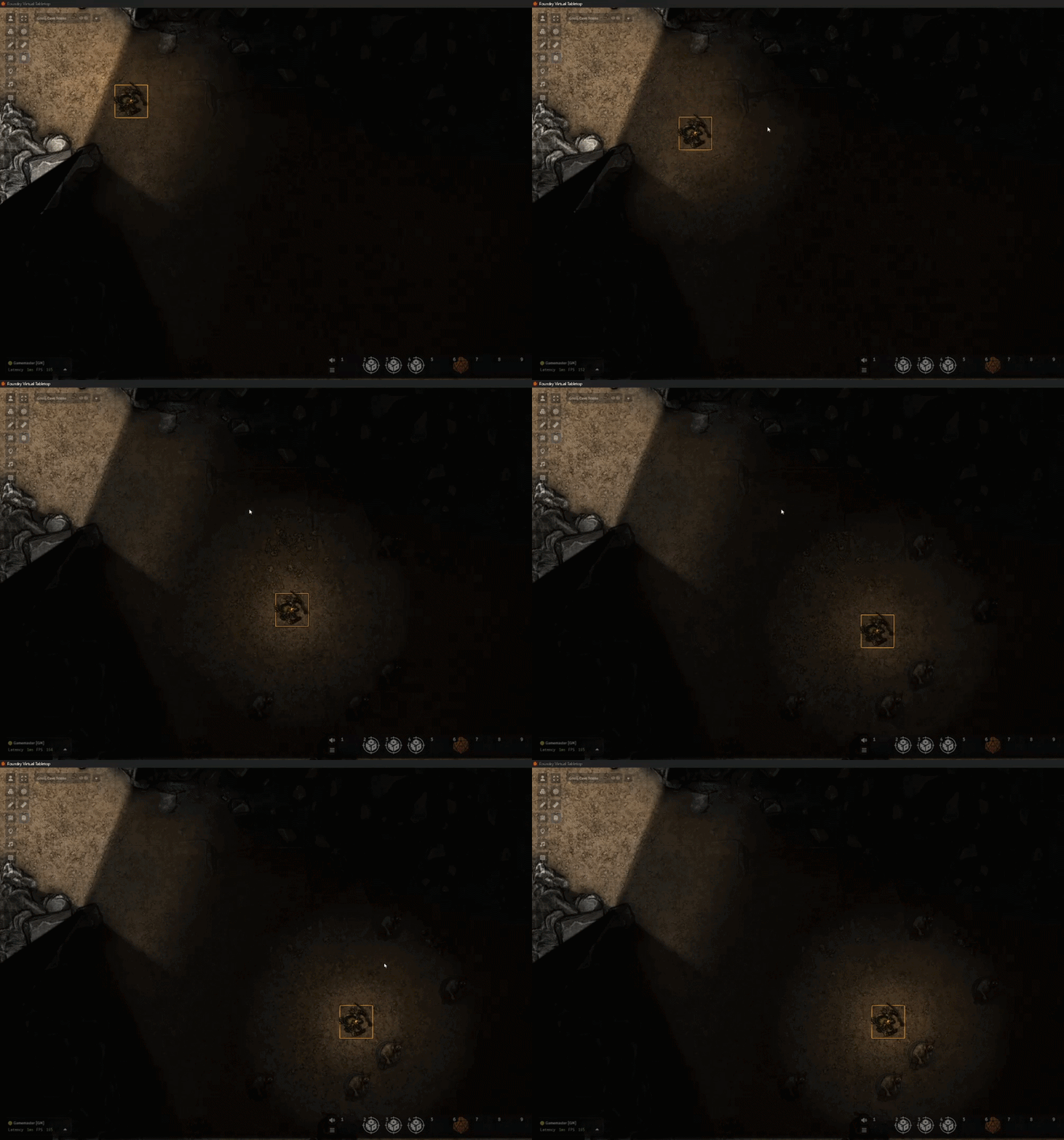
Vision fades with distance from the token instead of ending in a hard circle. Adjust the fade distance, curve, and strength. The fade follows walls and the token’s normal field of view.
Ambient Lights and token lights get soft edges even when no token is selected. Set your default light appearance, then override individual lights with Advanced Light Softening. Lights also offer a Photometric curve for a bright center and longer soft tail.
Peripheral Vision
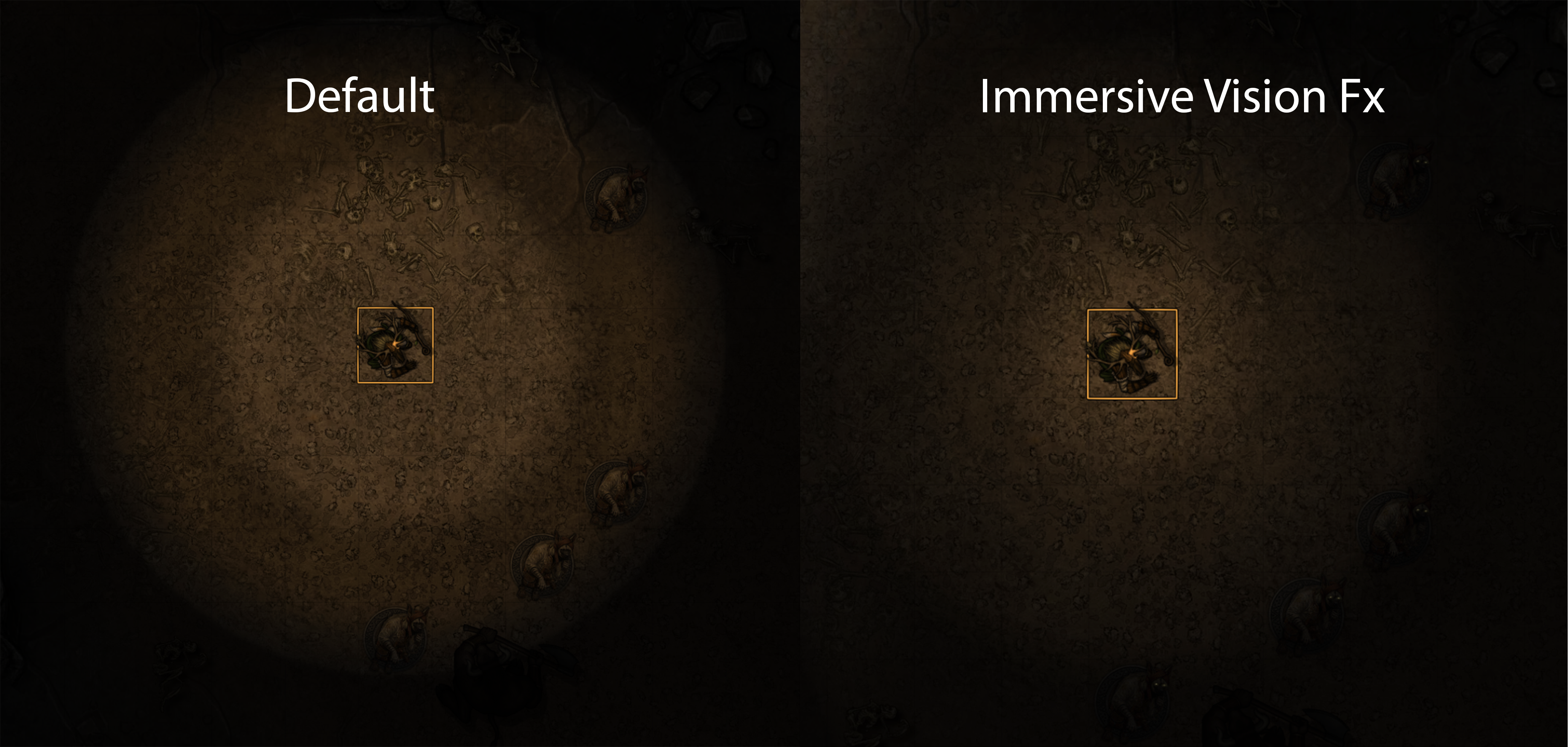
Add gradual blur and color loss near the edge of sight. Adjust where each effect starts and how strong it becomes. These effects apply to scene content, leaving interface controls and the grid clear.
Turning Peripheral Vision off disables its blur and desaturation. Other profile effects, including color perception and tint, retain their own settings.
Creature Vision Profiles
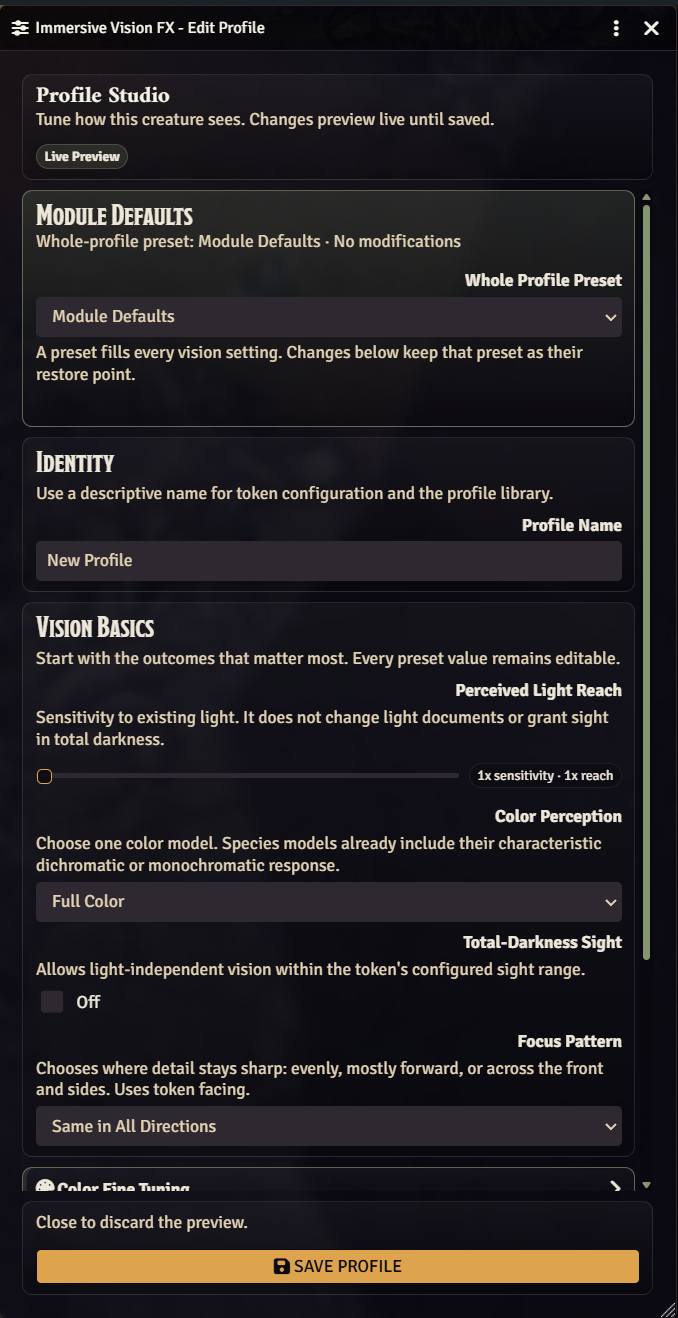
Start with Module Defaults, Human, Elf, Dwarf, Canid, Felid, Owl, or Ungulate, then tune four main controls: Perceived Light Reach, Color Perception, Darkvision, and Focus Pattern.
Expand the fine-tuning groups for light response, sharpness, edge presentation, or magical tints. Optional Adaptive Eyes adds gradual adjustment when moving between dark and bright areas. Natural Clarity makes dimly lit detail easier to see, with the effect fading as the light gets weaker.
Outdoor & Cave Light
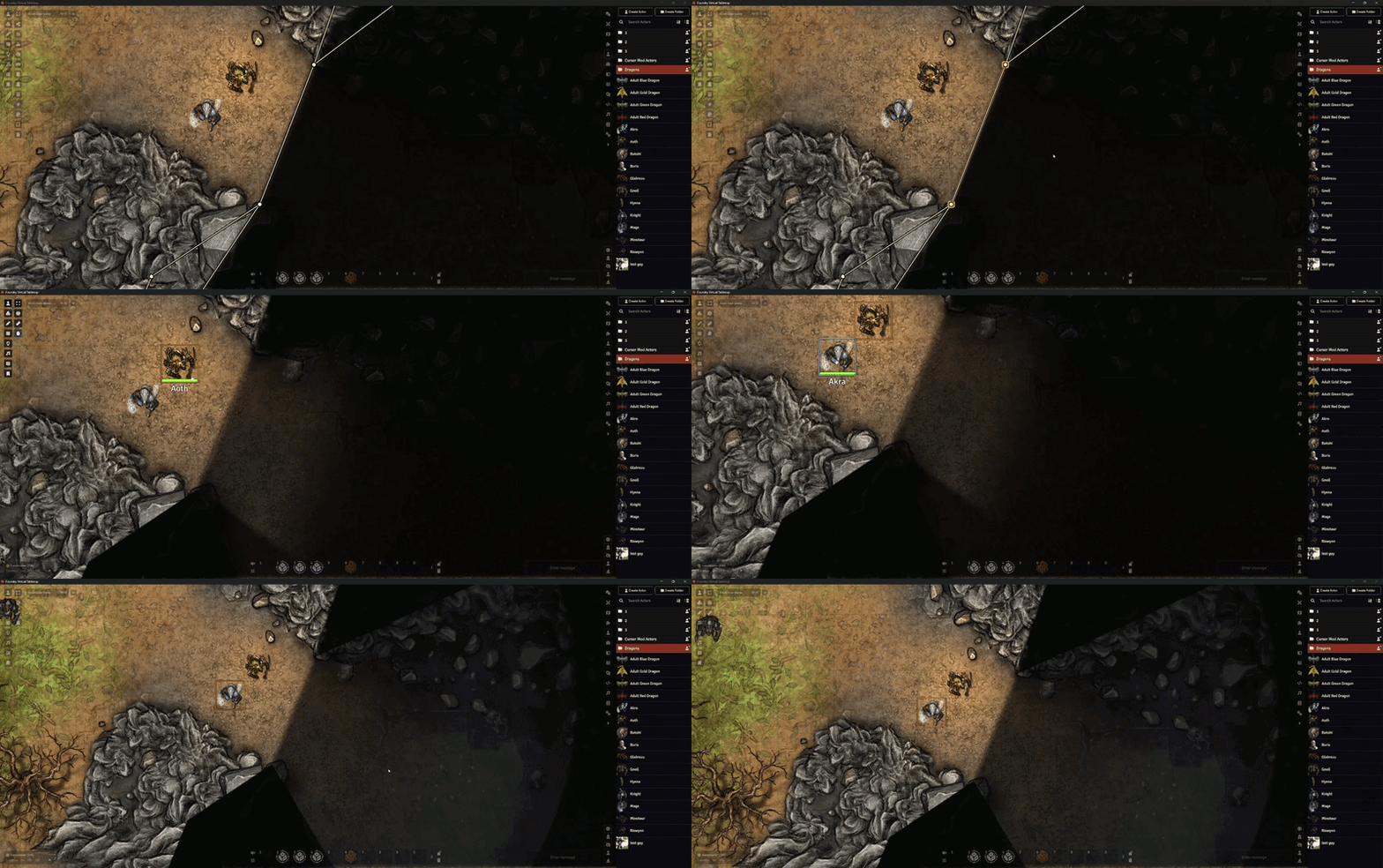
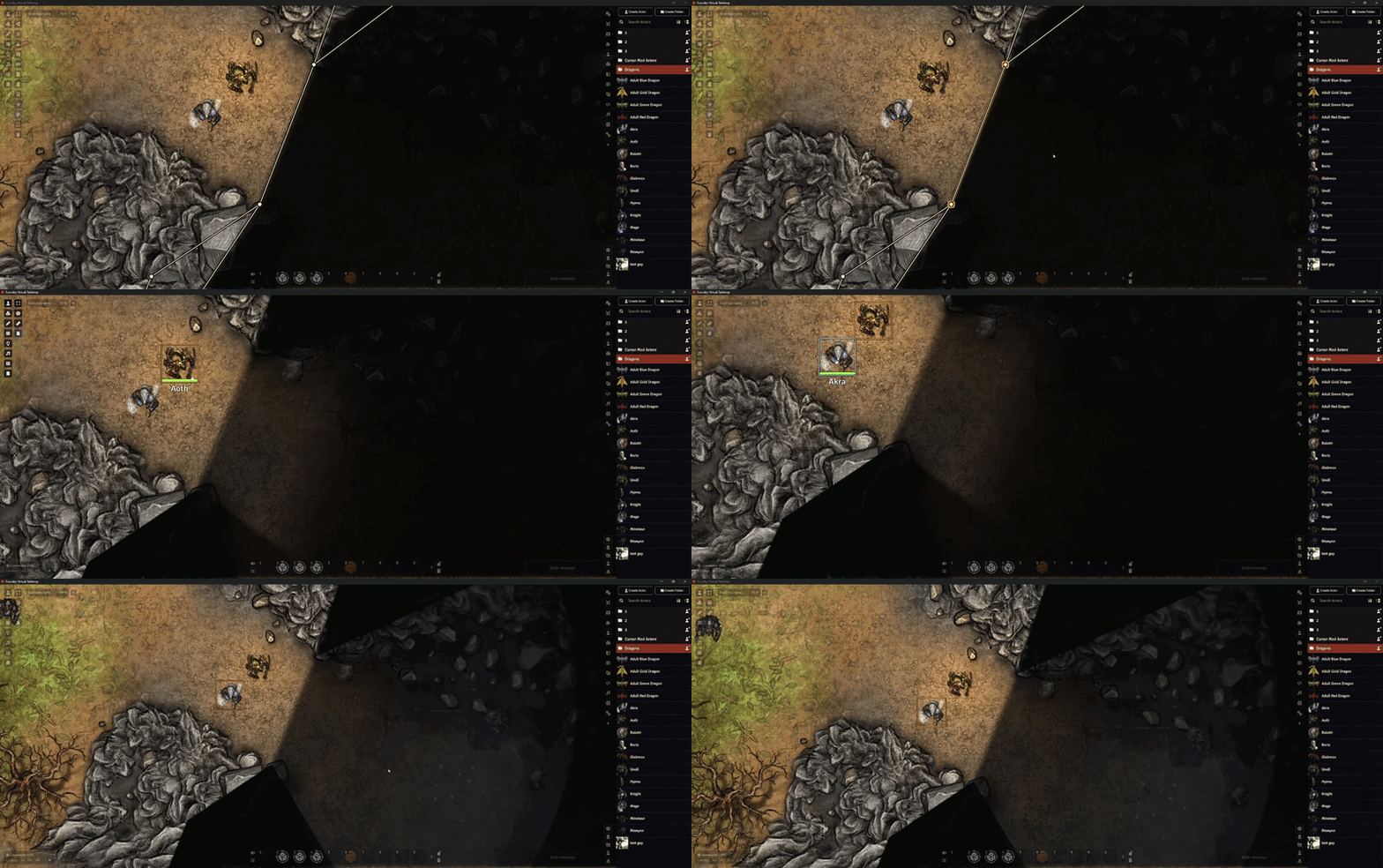
Light outdoor scenes and let daylight spill into caves.
Choose starlight, a moon phase, or a custom level of faint outdoor light in Scene Configuration. Creatures with different light sensitivity can see different amounts of detail under the same sky.
Enable Global Light Penetration on an Adjust Darkness Level Region behavior to bring outdoor light through an open cave entrance. Control its reach and softness, add indirect bounce, and choose whether a Region blocks, inherits, or replaces the scene’s ambient sky light.
Eyeshine
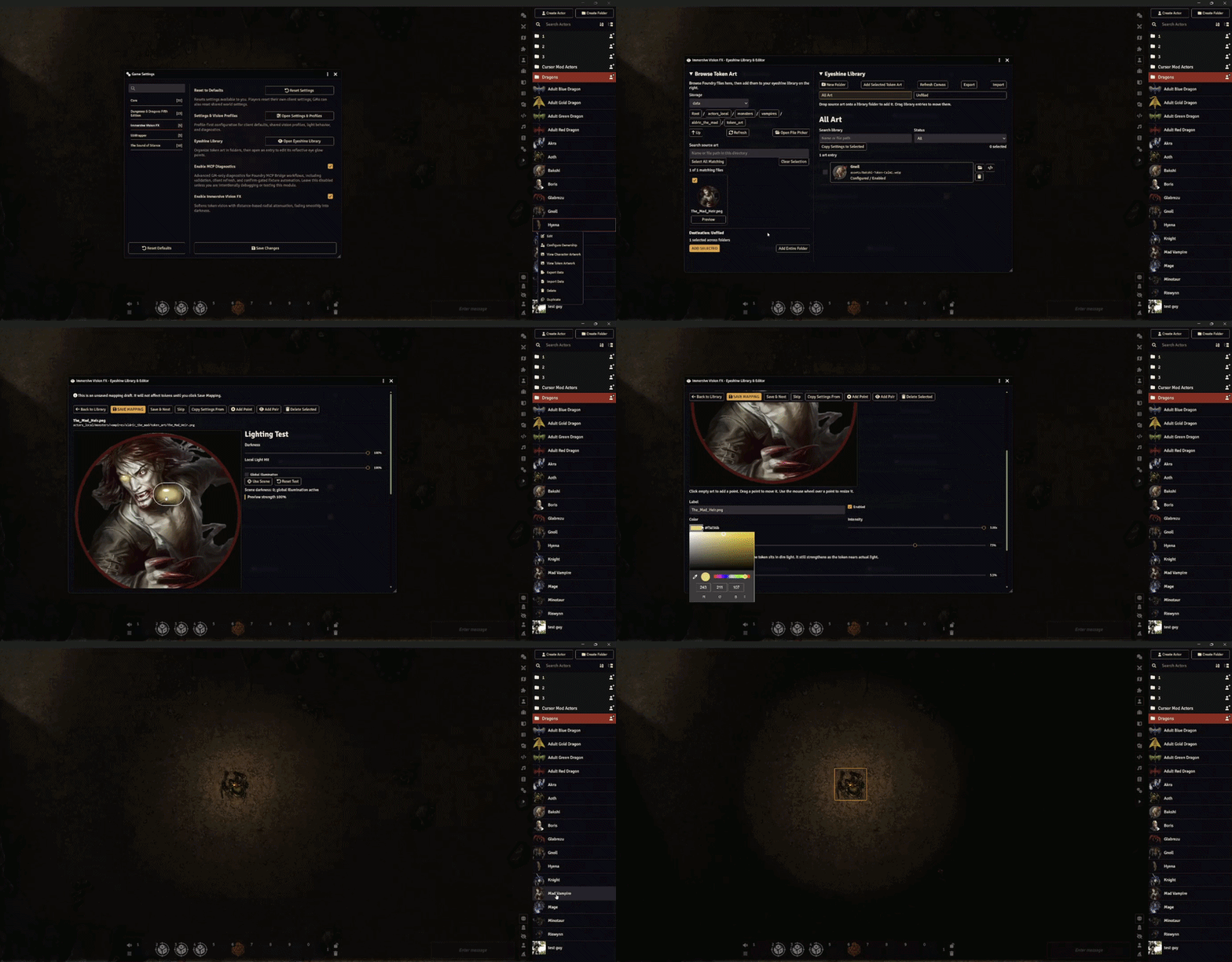
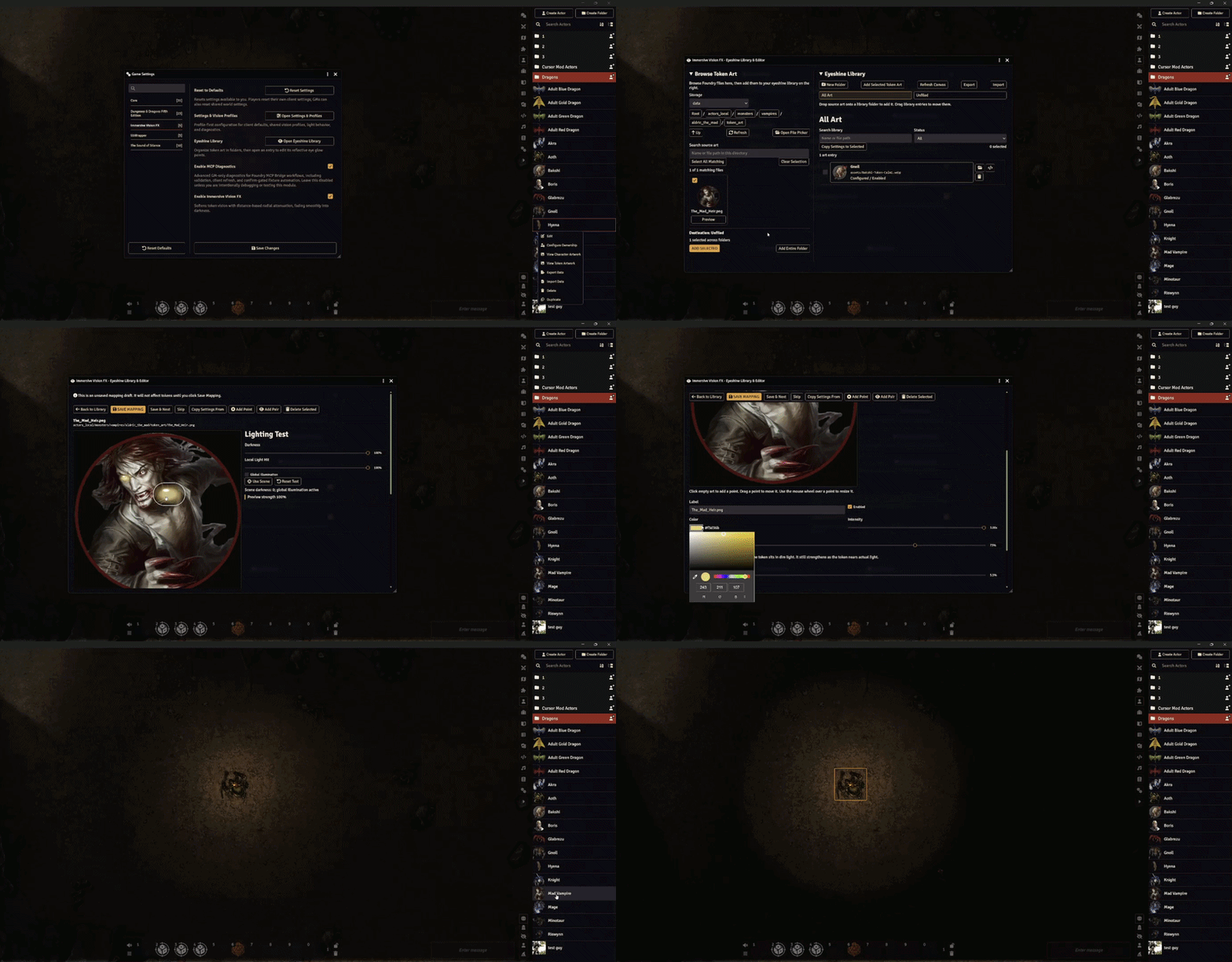
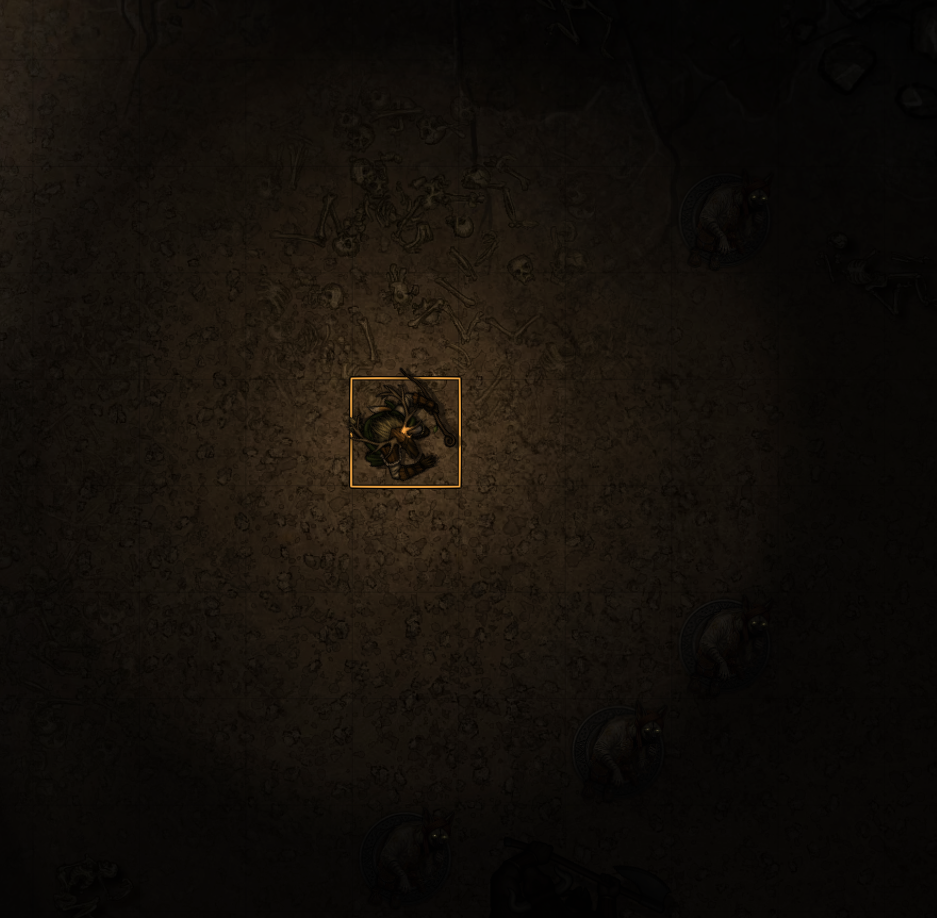
Place reflective points on a token image in the Eyeshine Editor. Every token using that art path can use the same mapping. Adjust color, size, intensity, and the dim-light floor, then preview the result with the editor’s lighting test.
Browse token art directly in the editor, add individual files or whole folders, and organize them in the Eyeshine Library. Imported art stays ready to map until you save its eye points.
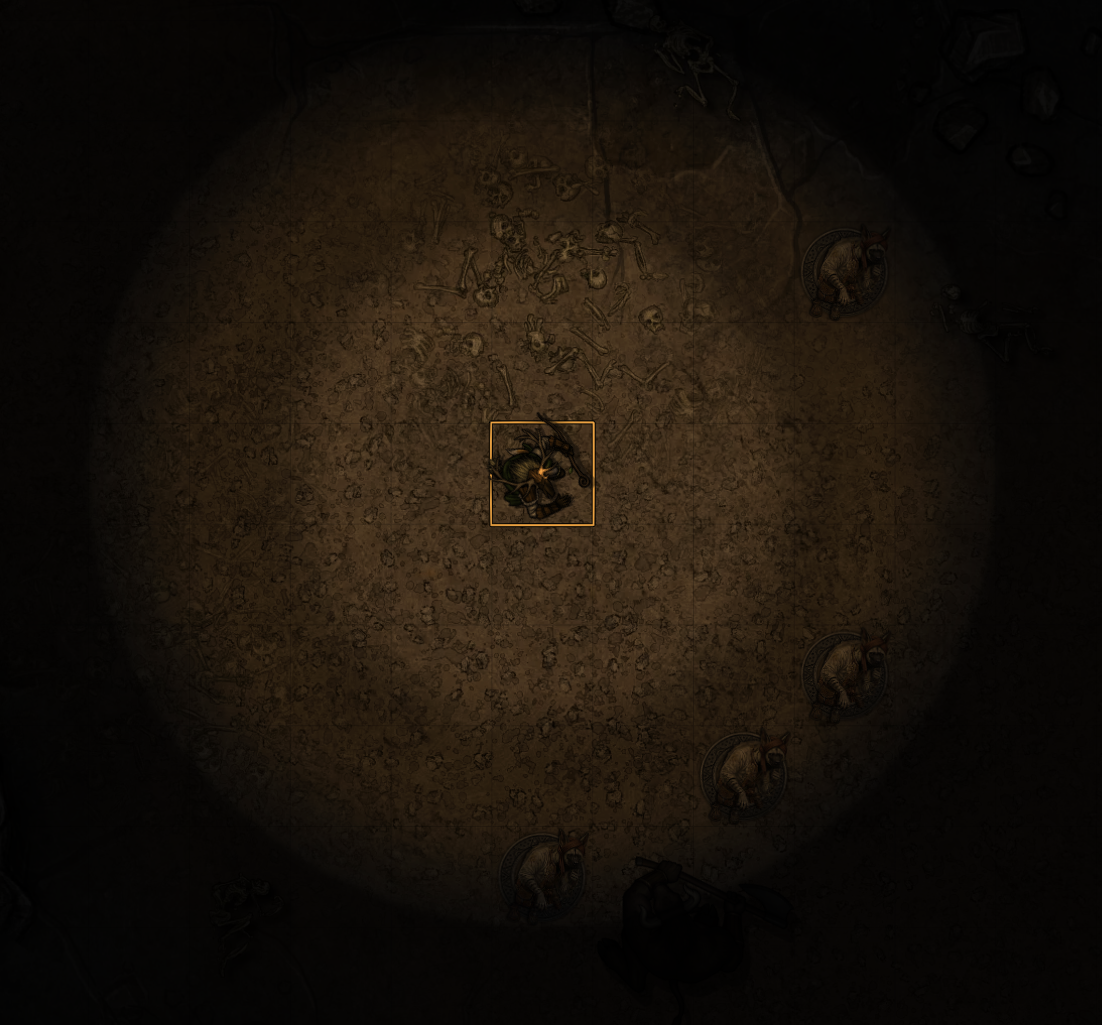
Eyeshine appears when the scene is dark enough and local light reaches a mapped eye. Optional retroreflection also checks the viewer’s position and line of sight. The glow is cosmetic: it does not create light, reveal fog, or extend vision.
| Before | After |
|---|---|
 |
 |
Vision Rules
Let Immersive Vision FX decide what each creature sees.
Turn on Vision Authority under Vision Rules in the module settings, then reload every client. Each token then sees with its own eyes: the light that reaches a target, its vision profile’s light sensitivity, and its darkvision decide whether the target is seen. A hyena can pick out a gnoll in the faint light at a cave mouth that a human standing beside it can’t. Midi-QOL, Stealthy, Limits, and Perceptive still apply on top.
- Darkvision is magical. Each profile chooses None, From Character Sheet, Within Token Vision Range, or Unlimited. With Vision Authority on, only tokens with a vision profile get darkvision, so give elves and dwarves a profile with Darkvision set. The animal presets have none.
- Vision range follows darkvision. A token sees in the dark as far as its darkvision reaches: the sheet’s range, unlimited, or not at all for natural eyes, which then see only by light. Nothing is saved to your tokens.
- Gradual fade. Creatures that are only just visible are drawn faint and grow clearer as the light or the viewer’s eyes improve. Their eyeshine stays bright.
Each rule can also be switched on or off on its own. A player who turns Immersive Vision FX off in their browser gets Foundry’s standard vision. Vision 5e isn’t supported: while it is active, Vision Authority stays off and GMs see a warning.
More Details
Profiles and token overrides
Follow the Quick Start to create and assign your first profile. For a one-token variation, choose Custom in the token’s Vision tab, adjust the values, and click Update Token.
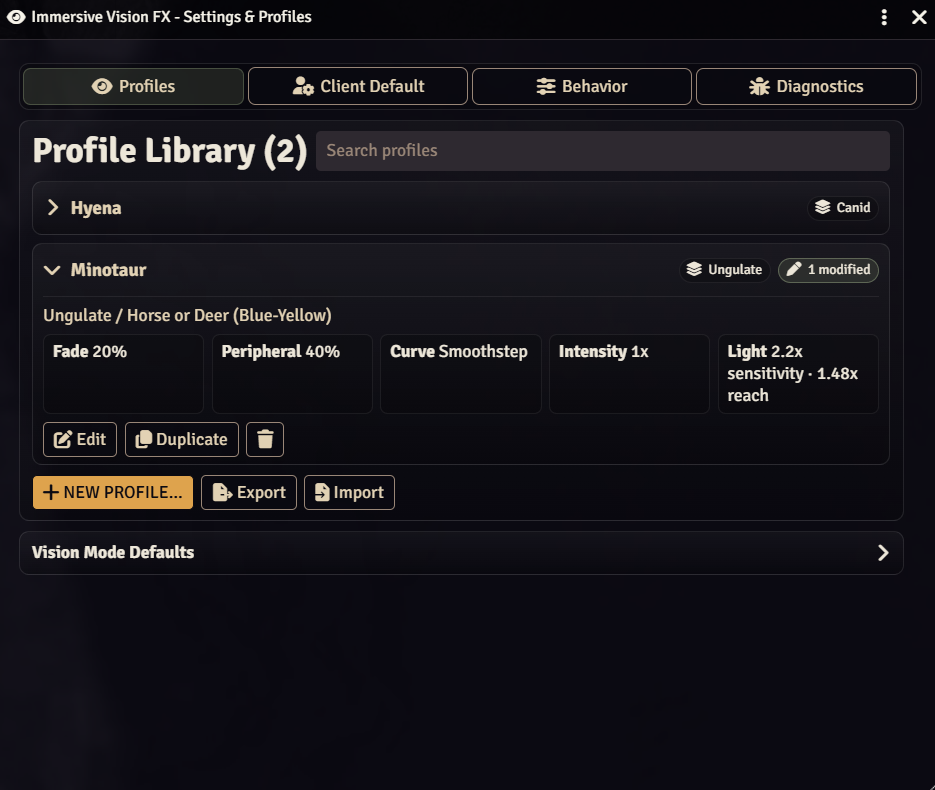
A profile changed from its preset is marked Modified. Restore an individual field or use Restore Preset for the whole profile. Custom (keep current values) removes the preset association while retaining the current values.
Token Custom mode starts with the profile or default values currently in use. You can restore those starting values for one field, one section, or all overrides. Use Profile/Default leaves Custom mode and follows the selected shared profile or default again. Deleting a referenced profile falls back to client defaults.
Use Client Default for your browser’s default values. GMs can assign defaults to Foundry vision modes and import or export shared profiles. Imports merge by profile ID and can optionally restore vision-mode defaults; exported profiles retain their preset restore point.
Prototype tokens support the same profile and custom settings, inherited by newly placed tokens. They are not placed in a scene, so they cannot show a live preview.
Light reach, darkness sight, and color perception
- Perceived Light Reach increases the viewer’s sensitivity to existing light. It does not create illumination or grant sight in total darkness. In the default Realistic Sensitivity model, 2× sensitivity extends a 40 ft local-light radius to about 56 ft; 4× extends it to 80 ft. Legacy Distance retains the earlier direct radius multiplier.
- Darkvision sets how a token sees without light: None, From Character Sheet (the actor’s darkvision, or the token’s Darkvision vision mode at its sight range when the sheet has none), Within Token Vision Range, or Unlimited. Truesight always comes from the character sheet. dnd5e supplies recognized actor darkvision and truesight ranges. Profiles that had Total-Darkness Sight on use Within Token Vision Range.
- Night-Vision Look adds the stylized night-vision glow. It doesn’t grant sight in the dark.
- Color Perception lets you choose one color model at a time, including species presets with their own color settings. Color loss in darkness can be adjusted separately.
- Focus Pattern changes sharpness with token facing. It does not change line of sight or target visibility.
- Natural Clarity makes dimly lit detail easier to see when using light amplification. Adjust its strength with Dim-Light Detail. It fades as the light gets weaker and does not reveal unexplored fog or areas behind walls.
Low-light sensitivity can change which illuminated targets the viewer recognizes. Walls, light paths, and Foundry’s detection checks still constrain that visibility. Seeing faint terrain does not mean you can also recognize a token there.
With active Global Illumination, redundant vision rings and darkness effects are suppressed. Effects Activation Darkness can delay these effects until the scene reaches a chosen darkness level. Native darkness sight remains available when only this threshold suppresses the visual effects.
Foundry’s Light Amplification vision mode uses IVFX’s light response while the module is enabled. Disabling IVFX restores Foundry’s presentation.
Species vision and Photometric falloff are visual approximations. Display calibration, individual animals, and adaptation vary.
Light softening, ambient sky, and cave setup
For an individual Ambient Light or token light, open its configuration and expand Advanced Light Softening. Enable Custom Light Softening to override the default fade distance, curve, and intensity. Placed lights preview on the canvas; prototype light settings apply to future tokens without a live canvas preview.
Ordinary lights keep Foundry’s bright/dim structure, wall occlusion, animation, and coloration. Cave-entry lights use the opening’s shape and reach instead of an ordinary circular falloff.
For a basic cave:
- Supply outdoor illumination through Foundry Global Illumination or Scene Configuration → Immersive Vision FX — Outdoor Light. Sky presets include None, Starlight, Crescent Moon, Half Moon, Full Moon, and Custom.
- Wall the sealed cave edges and leave an actual gap at the entrance. A darkness Region does not replace walls.
- Add an Adjust Darkness Level behavior to the Region. Under Light Entry, enable Global Light Penetration and start with Auto from Opening reach.
- Use Manual reach when you want a fixed scene distance. Daylight Softness shapes the spill; Edge Blend tunes the side and terminal fade without moving that endpoint.
- Under Indirect Light, choose Aperture Indirect Bounce for diffuse fill. Indirect Bounce sets brightness and Bounce Spread sets fade distance, from 100% to 200% of Daylight Reach.
- Select a viewer with Selected Token or Sticky Last Selected GM preview. Refresh selected viewer updates the Region form’s setup summary. Save applies the draft; closing discards it.
Advanced controls offer Legacy / Automatic or Height-Aware entry. Height-Aware uses the Opening Height you set and the scene’s daylight elevation. Direct light can follow the opening’s direction or the scene’s daylight direction. Scene azimuth sets the compass direction: 0° is north/up, increasing clockwise. Light spreads across the map in two dimensions; elevation is used when checking what blocks it.
Regions can block outdoor light for interiors, use the scene’s sky settings, or have their own sky preset or custom light level. Darkness Regions default to sealed interiors until configured. The scene needs outdoor light or active Global Illumination for light to spill inward. IVFX creates temporary cave-entry lights as needed; they are not saved as lights on the scene.
Cave lighting updates automatically when you create, edit, or remove Regions, their darkness behaviors, or walls.
Mapping eyeshine, including prototype and animated art
- Enable Eyeshine in the module settings as a GM.
- Select a placed token, open Eyeshine Editor, and choose Add Selected Token Art. Alternatively, use the Eyeshine card on a prototype token’s Appearance tab.
- Click the art preview to add points. Drag to move them, use the mouse wheel to resize them, or use Add Pair and the deletion controls. Adjust color, intensity, dim-light floor, and size.
- Use Lighting Test to compare darkness, dim light, bright light, and Global Illumination.
- Click Save Mapping. Until then, the mapping is a draft.
To build a larger library, expand Browse Token Art, choose the storage location, and open a folder. Use Search source art, select files, and choose Add Selected, or use Add Entire Folder. Folder imports offer Include subfolders and Preserve folder structure, then show a review before Add to Library. Existing mappings are kept and duplicate art is skipped. Open File Picker provides Foundry’s usual file browser.
In Eyeshine Library, use New Folder to organize art and select a destination before importing. Drag source art onto a library folder to add it, or drag library entries between folders to move them. These folders organize the library without moving the underlying files. Use All Art, Unfiled, Search library, and Status to find entries; click an entry to map it and Back to Library to return.
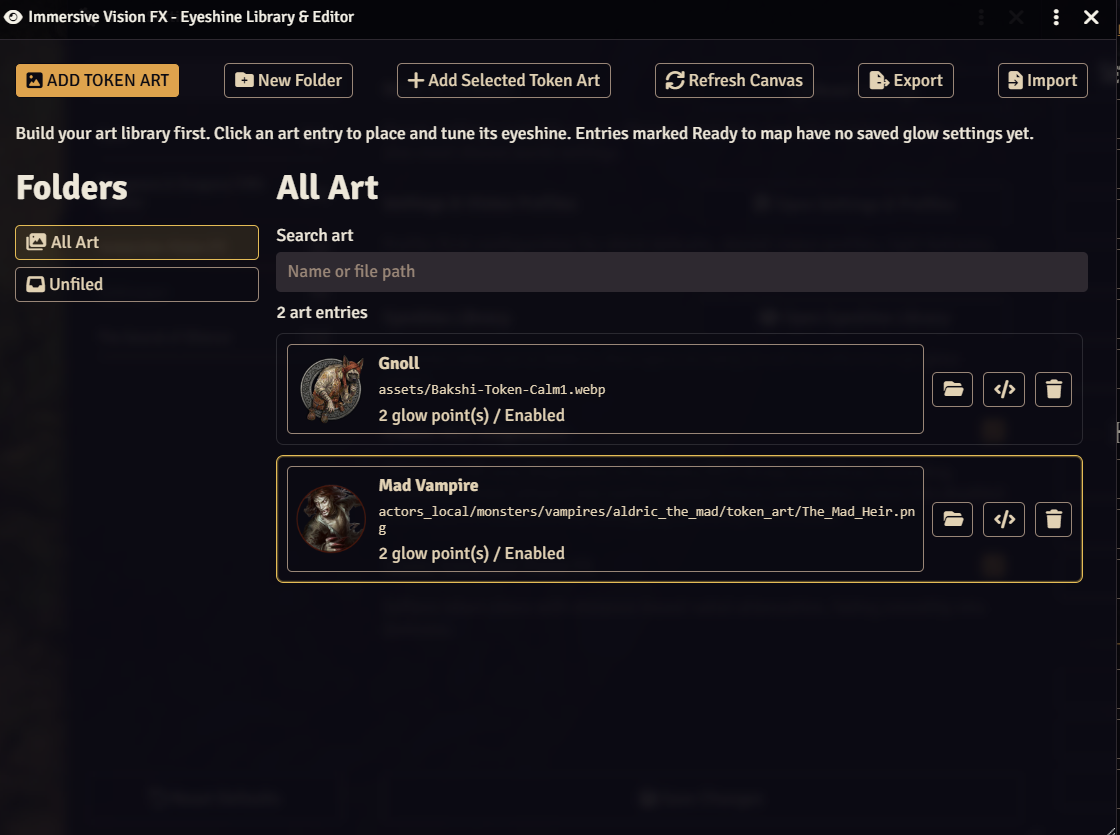
Copy Settings to Selected queues settings from a saved mapping for review. Open each entry marked Needs Review, check its eye positions, and click Save Mapping to apply it. Discard Queued Changes keeps the saved mapping. For unavailable art, use Retry or Locate Replacement, then review and save the replacement mapping.
A prototype-launched mapping is saved separately from Update Prototype Token. It applies globally to that art path, not just to the prototype. For wildcard art, map each concrete variant separately using the previewed image.
Animated art must load its dimensions before point placement is enabled. Playback and timeline controls help choose a frame; the mapping uses fixed coordinates rather than tracking moving eyes through the animation.
Illumination geometry checks light reaching the eyes. Retroreflective (Advanced) also requires observer line of sight and alignment with the incoming light. World settings control eyeshine for all clients; the module’s per-client master toggle remains an opt-out. Export/import lets you transfer mappings, provided the art paths match.
GM tokens and fog of war
As GM you see the whole map anyway, so the fog of war your own tokens build up is rarely useful, and saving it costs frame rate while they move. Turn on GM Tokens Don't Save Fog of War in the module settings. On your screen, tokens no player owns still see as usual when you select them, so you can judge what they can see right now, but nothing they see is added to your fog of war.
For the few tokens that should remember, turn on Remember Fog of War in the Immersive Vision FX section of the token's Vision tab. Player-owned tokens always remember. Players' fog of war isn't affected in any way. Clear My GM Fog of War in the module settings clears only your own fog of war in the scene you're viewing.
Settings and defaults
Use Settings & Vision Profiles for client defaults, shared profiles, behavior, and diagnostic settings. Fine-tuning groups cover color, light response, focus and clarity, edge presentation, and special effects.
| Control | Default | Range or choices |
|---|---|---|
| Enable Immersive Vision FX | On | Per-client master toggle |
| Vision Fade Distance / Curve / Intensity | 0.20 / Smoothstep / 1.0 | 0.05–0.60 / Smoothstep, Linear, Cosine / 0.3–3.0 |
| Light Fade Distance / Curve / Intensity | 0.20 / Smoothstep / 1.0 | 0.05–0.60 / vision curves plus Photometric / 0.3–3.0 |
| Edge Smoothing | 2 | 0–10; 0 disables it |
| Peripheral Vision / Start / Blur / Desaturation | On / 0.40 / 8 / 0.70 | Start 0.10–0.80; blur 0–20; desaturation 0–1 |
| Effects Activation Darkness | 0 | 0–1; 0 follows Global Illumination without an extra threshold |
| Perceived Light Reach | 1× | 1×–4× sensitivity; world model defaults to Realistic Sensitivity |
| Color Perception / Darkvision / Focus Pattern | Full Color / From Character Sheet / Same in All Directions | Set in Vision Basics |
| Adaptive Eyes / Exposure Model / Strength | Off / Bucket / 1.0 | Bucket or Continuous; strength 0–1 |
| Dark / Light Adaptation Time | 8 s / 2 s | 0–30 s / 0–15 s |
| Bright Washout | 0.35 | 0–1 |
| GM Vision Preview | Selected Token | Neutral Overview, Selected Token, Sticky Last Selected |
| Eyeshine / Darkness Threshold | Off / 0.55 | World settings; threshold 0–1 |
| Eyeshine Geometry / Full Reflection / Cutoff | Illumination / 8° / 20° | Illumination or Retroreflective; 0°–30° / 5°–60° |
| Vision Mechanics Observer | Off | GM diagnostic observation; does not apply actor conditions |
| True Darkness Threshold / Glare Distance | 0.98 / 1.0 | Observer thresholds: 0.80–1.0 / 0.25–2.0 |
| Vision Rules: Vision Authority / profile-only darkvision / vision range / gradual fade / faintest opacity | Off / Auto / Auto / Auto / 0.35 | World settings; Auto follows Vision Authority; opacity 0.05–1; changing Vision Authority needs a reload |
| GM Tokens Don't Save Fog of War | Off | World setting; per-token Remember Fog of War toggle; Clear My GM Fog of War button |
| Perceptive Integration (only with Perceptive) | On | IVFX lighting and viewer senses on; D&D 5e vision rules and darkvision in magical darkness off; dim-as-bright amplification 2 (0–4, 0 off); eyeshine on revealed creatures on |
| Debug Mode / Debug Sight Radius Overlay / Enable MCP Diagnostics | Off | Troubleshooting tools; leave disabled during normal play |
Shared profiles, vision-mode assignments, the light-amplification model, and eyeshine policy/mappings are world settings. Personal rendering preferences and the master toggle are client settings. The light fade control is a minimum softness; IVFX retains a full-radius fade for ordinary lights.
Reset to Defaults shows the settings you can reset. Players reset their own client settings; GMs can also reset shared world options. Your saved profiles, vision-mode assignments, and eyeshine mappings are preserved.
Troubleshooting and performance
- No effect: confirm libWrapper is installed and enabled, then check the per-client master toggle, the selected viewer, and its profile. Global Illumination or the activation-darkness threshold can suppress effects that would otherwise appear in darkness. If rendering fails, check the browser console (F12) and include the error when asking for support.
- No sight in darkness: check the token’s sight range, its native vision mode, and its profile’s Darkvision. With Vision Authority on, tokens without a vision profile have no darkvision. Perceived Light Reach needs existing illumination.
- Unexpected GM view: check GM Vision Preview and select the intended token. With no active viewer, Foundry controls the GM’s overview.
- No cave spill: check outdoor illumination, the Region’s Adjust Darkness Level behavior, and a real gap in the walls. Sealed boundaries block entry.
- No eyeshine: save the mapping, confirm the exact art path, and check scene darkness and local light at an eye point. Active Global Illumination suppresses eyeshine; Retroreflective mode adds alignment and observer line-of-sight requirements.
- Slow rendering: reduce peripheral blur and compare simpler light curves on scenes with many overlapping lights. Keep diagnostic tools off during play. The renderer handles up to 16 vision sources, 96 local lights, and 24 apertures at once.
- A light looks untreated: count the lights currently on screen. Past 96 visible lights, the extra ones keep Foundry’s normal appearance without IVFX fading or peripheral relief, and the browser console shows a one-time warning. Lights outside the view do not count, and nothing stops you from placing more.
- A possible module conflict: reproduce in a test world with other vision/lighting modules disabled, then report the versions, reproduction steps, and console output on Discord.
Installation
- Join Bazaar Patron.
- Link your Patreon account to the Foundry account that owns the Foundry license used by your installation.
- In Foundry Setup, open Add-on Modules → Install Module → Premium Content, find Immersive Vision FX, and install it.
- Install the required libWrapper dependency (version 1.13.5.1 or newer) when Foundry prompts. If it is missing, install it from Add-on Modules → Install Module.
- Open your world, choose Manage Modules, enable Immersive Vision FX and libWrapper, and save.
Your Bazaar Patron membership includes:
- Every Bakshi’s Bazaar premium module while your membership is active, including ongoing updates and new modules as they’re added.
- Patron-only channels in the Bakshi’s Bazaar Discord.
- Priority module support.
- A direct place to share feedback and feature suggestions. Suggestions are welcome and taken seriously, but development priorities remain at my discretion.
Updates install from Foundry's Add-on Modules screen like any other module. Release notes are in the changelog. Updates are also announced in the Bakshi’s Bazaar Discord.
If Foundry shows Not Owned, check the linked accounts and your active tier’s access. See Foundry’s Premium Content guide for account activation and installation help.
| Requirement | Version |
|---|---|
| Foundry VTT | v14 only; verified 14.370 |
| Game system | No specific system required; live-tested with dnd5e 5.3.3, dnd5e 6.0.6, dnd5e 6.1.0, and PF2e 8.2.0 |
| libWrapper | Required; 1.13.5.1 or newer |
Compatibility
Version: 14.4.0
Foundry VTT: v14 only; verified on 14.370.
Game systems: Foundry-native vision across systems, with additional D&D 5e sense integration. Live-tested with dnd5e 5.3.3, 6.0.6, and 6.1.0 and PF2e 8.2.0.
Other modules: IVFX uses libWrapper to work alongside other modules, but modules that also change vision, lighting, or what tokens can see can still conflict.
Tested alongside: these modules change what tokens can see. This release was live-tested with all of them enabled together on Foundry 14.369 and 14.370 with dnd5e 6.0.6, and on Foundry 14.370 with dnd5e 6.1.0 with all of them except Midi-QOL, which doesn’t support dnd5e 6.1 yet. IVFX stays on, and creatures they hide stay hidden.
- Midi-QOL 14.6.11 with DAE 14.6.9: hiding and per-observer visibility.
- Stealthy 14.0.0: perception against stealth for hidden tokens.
- Limits 3.0.0: sight, light, and sound range limits inside Regions.
- Perceptive 6.0.9: vision extras such as spotting hidden tokens and peeking through doors. IVFX decides Perceptive’s light levels: daylight through openings, moonlight, magical darkness, and each viewer’s senses count in its stealth and perception checks, and spotted hidden creatures keep their eyeshine. GMs set it up under Perceptive Integration in the module settings. Other Perceptive 6.x versions run with a warning.
With Vision Authority on, all four keep working on top of IVFX’s own sight checks. Truesight through magical darkness stays off while any of them changes how tokens are detected.
Not supported: Vision 5e replaces Foundry’s visibility checks. While it is active, Vision Authority stays off, IVFX only draws, and GMs see a warning. Use one or the other.
System support, rendering limits, and other modules
Core visual features use Foundry’s lighting and vision. Character senses follow the active game system:
| System | Character senses and vision |
|---|---|
| dnd5e | Automatic actor darkvision and truesight interpretation, native token vision, and IVFX profiles |
| PF2e | PF2e’s native token vision and IVFX profiles; no separate PF2e actor-sense integration |
| Other systems | Recognized native vision modes and IVFX profiles; individual systems still need live testing |
Standard Basic Vision, Darkvision, Monochromatic, and Light Amplification are supported, with blindness respected. IVFX stays enabled when another module or system changes a vision mode, including custom shaders and unfamiliar modes such as Tremorsense.
Conflicts can produce rendering problems or errors. IVFX doesn’t switch the view to Foundry’s standard vision on its own, and if another module removes its effects from the canvas, it puts them back.
Use the per-client master toggle to disable IVFX when troubleshooting. Include browser console (F12) errors when requesting support.
Earlier live checks on Foundry 14.367, with only IVFX and libWrapper 1.13.5.1 enabled, covered basic and darkvision on GM and player clients in both systems, including profiles, walls, and hidden or unlit targets. Separate GM checks covered special detection and automatic cave-light updates through Region creation, edits, and removal. dnd5e checks also covered actor senses, blindness, equipment and Active Effect changes, sight limits, and unit conversion; PF2e checks covered native sense and condition changes.
Eyeshine, ordinary lighting, and light perception have been tested in both systems, including PF2e with Rules-Based Vision enabled. Eyeshine follows the effective scene lighting: it appears under suitable local light in darkness and is suppressed while Global Illumination is active.
The optional Vision Mechanics Observer reports lighting and vision information for troubleshooting without adding character conditions or effects. Other module combinations still need live compatibility testing.
If something looks wrong, try disabling the other vision or lighting modules in a test world, then report the combination on Discord.
Light and vision fade across the map in two dimensions. Token and light elevations participate in relevant V14 collision checks, but this is not a 3D lighting simulation. More visible sources, overlapping lights, and blur increase rendering work; results depend on the scene and client hardware.
On scenes with Levels, lights, tokens, and Regions follow Foundry’s Level assignment. An Ambient Light with no Level restriction is present on every level, so restrict lights to their floor when a floor should stay dark. IVFX treats each light exactly as Foundry draws it on the viewed level.
The viewer effects account for up to 96 light sources on screen at once, counted after off-screen lights are set aside. Foundry still places and renders every light, so the limit never blocks scene building. Lights beyond it keep their normal Foundry appearance but do not receive IVFX fading or peripheral relief, and the browser console reports it once per session. On graphics hardware that cannot run one of the vision effects, IVFX skips just that effect and keeps Foundry’s normal rendering for it. The other effects stay on, and the browser console names the skipped effect.
Developer API
Immersive Vision FX works through its settings window and Foundry's token, light, scene, and Region configuration. Its api object serves internal integrations and diagnostics; it isn't offered as a supported public API for third-party modules or macros.
For integration requests, describe the workflow you want to support on the Bakshi’s Bazaar Discord.
Free Modules
I also make free modules. Install them from Foundry's Add-on Modules browser.
| Module | What it adds |
|---|---|
| 5e Item Importer | Turns D&D 5e stat blocks or YAML into Items. |
| Show of Hands | Middle-mouse targeting, marquee selection, and custom shared cursors. |
| Squad Combat Initiative | Runs big dnd5e fights as squads with group initiative, captains, and morale. |
| The Sound of Silence | Internal loops, crossfades, silence gaps, and soundscapes for Foundry playlists. |
Roadmap
Future priorities will be shaped by real campaign workflows, reported issues, and improvements I feel are appropriate. Share a feature request on the Discord! Include an example of what you are trying to show and where the current tools get in your way.
Community
Support is handled through the Bakshi’s Bazaar Discord. Patrons receive priority support, without guaranteed response or resolution times. Suggestions are welcome, but are not commitments or commissions; development priorities remain mine.
- Report bugs — Report on Discord. Include your Foundry version, Immersive Vision FX version, game system and version, steps to reproduce, console logs, and screenshots or short clips when useful.
- Request features — tell me what you were trying to show and what you wish the module could do.
- Follow updates — check the Bakshi’s Bazaar Discord for changes and compatibility notes.
AI-Assisted Development
This module is developed and maintained with the help of AI-assisted tools for coding, debugging, and testing.
I care about the quality, behavior, performance, security, and long-term maintainability of this module, and I take full responsibility for what ships. AI assistance does not replace review, testing, debugging, or security and design judgment.
AI is used here as a tool under my direction to make Foundry better and allow for long term mod support while still having a life outside of building and maintaining my free and premium modules.
If you are uncomfortable using software developed with AI-assisted tools, this module is not for you.
⚖️ License & Permissions
Premium License
Immersive Vision FX is a paid, premium module. Refer to the shipped LICENSE.txt (LICENSE.txt in the installed module) for usage and redistribution permissions.
Commercial Licensing
For bundling, commercial integrations, or custom feature development, contact me to discuss licensing and permission.
Contact
For licensing inquiries or permission slips:
- Discord:
GnollStack(Preferred) - Email:
[email protected] - Please use Discord or email for commercial licensing discussions rather than public bug reports.
Author: GnollStack · Compatibility: Foundry VTT v14