


| Latest version | 1.0.0 |
|---|---|
| Minimum Core | |
| Compatible Core | |
| Last updated | 5 months ago |
| Created | 5 months ago |
| Authors | |
| Languages |
|
| Systems | All systems |
| Project source | Project URL |
WYV WebCam Utils Overlay enhances your online D&D sessions by transforming plain webcam feeds into rich character information panels , keeping every player's key stats visible at a glance without opening a single character sheet.
Character Portraits appear as circular overlays on each player's webcam feed, with configurable size, border color, zoom level and face focus. When a player has no active camera, their character portrait fills the entire video frame automatically.
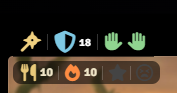
Weapons & AC Bar floats above each webcam view showing every equipped weapon with type-aware icons (swords, daggers, axes, hammers, maces, bows, crossbows, staves, and more). Ranged weapons display their current ammunition count. The Armor Class is shown with a shield icon that turns blue when a shield is equipped, hover it to see a full list of equipped armor and clothing. Two hand indicators show whether the character's hands are free, occupied or overloaded. Right-clicking any weapon icon lets you unequip it directly from the overlay.
Indicators Bar sits inside each webcam view displaying rations count, torch count, inspiration status and exhaustion level, all color-coded and updating in real time as inventory changes.
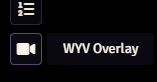
A dedicated WYV Overlay control group is injected into Foundry's left-side toolbar (below the Sequencer layer button). Click the camera icon to expand the tools panel, which provides one-click toggles for every major feature, no need to open Module Settings.
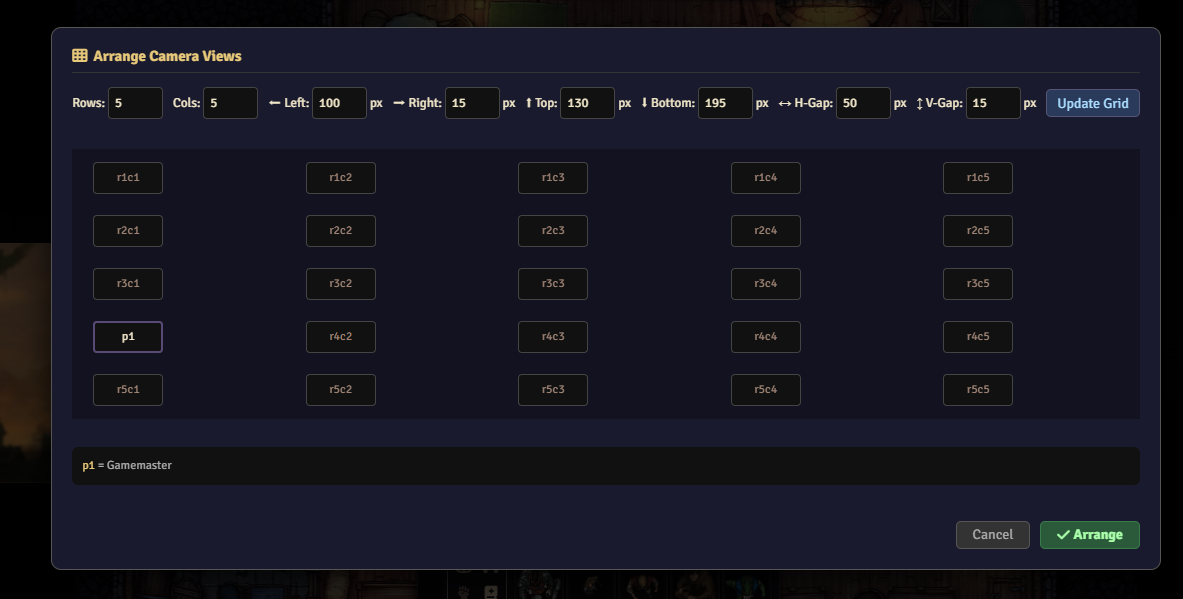
Camera Arrange Tool lets each player organize all webcam views into a custom grid layout. Open the modal, define rows and columns, drag-position each player by typing p1/p2/p3, set margins to avoid UI elements, and arrange everything with one click. Settings persist between sessions per player.
All features are individually toggleable via a dedicated control group in the scene toolbar, and every setting is per-client so each player configures their own experience independently.
Tested and verified on Foundry VTT v13 and the D&D 5e system.